How to Use AI Virtual Headshots for Business in 2025
How to Use AI Virtual Headshots for Business in 2025
If you’re updating LinkedIn, launching a new website, or trying to get consistent photos for a remote team, you’ve probably hit the same wall: booking a photographer is slow, expensive, and impossible to scale globally. That’s why AI virtual headshots have gone from “nice experiment” to practical default in 2025.
The problem? Most guides only tell you which tool to click, not how to build a repeatable workflow that keeps your image professional, on‑brand, and safe to use everywhere.
This guide fixes that. You’ll get a simple, end‑to‑end workflow for:
- Setting a clear visual brand for you or your team
- Generating AI virtual headshots with HeadshotVIP
- Keeping everything consistent across LinkedIn, resumes, websites, and internal tools
- Avoiding common privacy, realism, and ethics mistakes
Along the way we’ll compare alternatives like Canva and HeadshotPro, so you can decide what fits your situation.

1. What Is an AI Virtual Headshot (and Why It Matters for Business)?
An AI virtual headshot is a professional portrait generated by AI from your existing selfies or casual photos. Instead of going to a studio, you upload images once and get a batch of AI-generated headshots that look like a real photo shoot.
For business use in 2025, people typically need:
- AI professional headshots for LinkedIn and CVs
- Virtual business headshots for company “About” pages and pitch decks
- Remote team headshots that look like everyone actually met the same photographer
- Online professional images tailored to different audiences (e.g., more formal for investors, more relaxed for startup careers page)
Done well, this gives you:
- Speed – go from casual selfies to polished images in under an hour
- Cost savings – especially for teams across cities or countries
- Consistency – one visual language across your personal brand or entire company
Done badly, you get uncanny faces, mismatched styles, or privacy headaches.
So instead of “try a tool and hope,” you need a workflow.
2. A 6‑Step Workflow for AI Virtual Headshots (That Actually Scales)
This is the same structure I recommend for solo professionals and remote teams. You can run it in a day and reuse it for years.
- Define your visual brand
- Gather and standardize source photos
- Generate a core set of AI virtual headshots (HeadshotVIP)
- Roll out to your online presence
- Create a repeatable process for teams
- Add governance: privacy, realism, and updates
Let’s break it down.
3. Step 1 – Define Your Visual Brand Before You Click “Generate”
Most people skip this and then complain that “AI looks fake.” The issue is usually no clear direction, not the model.
For a solo profile or a 200‑person team, decide:
3.1 Choose your “professional persona”
Pick one primary positioning:
- Corporate / executive – suits, neutral backgrounds, subtle expression
- Startup / product – smart casual, softer backgrounds, more warmth
- Creative / consultant – bolder colors, more personality, environmental backgrounds
Write a one‑line statement, for example:
“Calm, confident startup founder in smart casual, light background, approachable smile.”
Use this later as a style reference when choosing options in HeadshotVIP or any other tool.
3.2 Lock in style rules
Create a quick style checklist (one page in Notion or Google Docs is enough):
- Backgrounds
- Color: light gray / off‑white / office / bookshelf?
- Blur: subtle bokeh vs sharp environment
- Framing
- Head and shoulders? Slightly wider? Square vs portrait?
- Clothing
- For men: blazer + shirt, no tie?
- For women: blazer, blouse, no loud patterns?
- Expression
- Gentle smile, no visible teeth? Or big welcoming smile?
For teams, this is non‑negotiable. It’s how you avoid the “everyone looks like a different company” problem.
4. Step 2 – Prepare Source Photos That AI Can Actually Work With
Every AI generator—including HeadshotVIP, Canva, and HeadshotPro—depends heavily on input quality. The reference articles all repeat the same point: garbage in, garbage out.
Aim for:
Minimum set for one person
- 6–15 photos (HeadshotVIP usually performs best with 8–12 good ones):
- 4–8 clear close‑ups
- 2–4 half‑body shots
Quality checklist
- Good, even lighting (window light is perfect)
- No heavy filters or beauty apps
- Face fully visible (no sunglasses, thick scarves, or strong shadows)
- A mix of neutral and gentle smiling expressions
- At least some photos in plain clothing (solid colors)
For a remote team:
- Give a shared “photo brief”:
- Where to stand (“face a window during the day, phone at eye height”)
- What to avoid (strong backlight, group shots, hats)
- Acceptable clothing colors and necklines
You’ll save dozens of support messages later.
5. Step 3 – Generate Your AI Virtual Headshots with HeadshotVIP (Recommended)
You can use many tools, but HeadshotVIP is designed specifically for fast, business‑grade AI virtual headshots and style-consistent team batches. Here’s how to build it into your workflow.
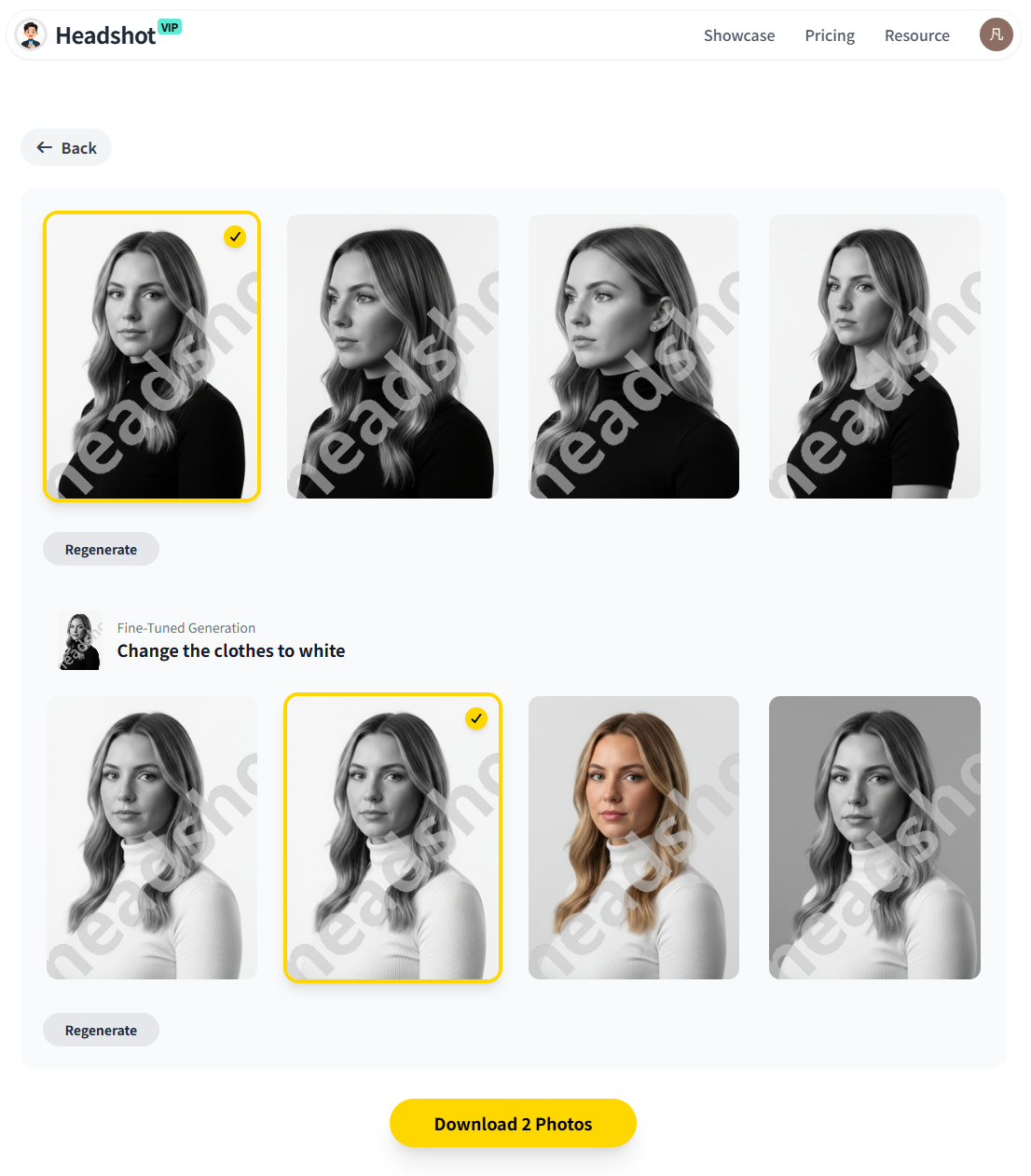
Method 1: Using HeadshotVIP (Recommended)
Use Case:
- Individuals who need LinkedIn‑ready, resume‑friendly AI professional headshots fast
- Founders, consultants, and freelancers aligning their image across websites, sales decks, and social
- Remote teams that want consistent virtual business headshots without booking photographers in every city
Operation Steps:
Go to HeadshotVIP
Visit the official site: https://headshot.vip.
Create an account with your work email so you can reuse the account later for updates.Choose the right plan
- Starter – low‑cost option if you just need a few headshots for LinkedIn and your CV
- Professional – more styles and higher‑resolution outputs for use across LinkedIn, websites, and printed resumes
- Team / Business – custom pricing for multiple people, with style‑consistent batch generation
For most professionals, the Professional tier is the sweet spot. For a team rollout, start by testing with 3–5 people on a Team plan.
Upload your selfies
- Select 8–12 of your best photos based on the checklist above
- Avoid duplicates and heavily edited shots
- Upload and confirm your identity details (gender presentation, hair length, etc.) so the model can lock onto your likeness
Pick your styles using your brand rules
Based on the style doc from Step 1:- Select backgrounds: light neutral, office, or subtle gradient
- Choose clothing styles: executive, startup casual, or creative professional
- Confirm framing: head‑and‑shoulders, vertical or square (HeadshotVIP optimizes for LinkedIn and CV ratios by default)
For teams, you can save a preset (e.g., “Company: Formal Grey Background”) and apply it to everyone to keep a unified look.
Generate your AI virtual headshots
Click generate. HeadshotVIP uses:- Advanced facial recognition and identity consistency modeling to keep you recognizably you across styles
- Intelligent lighting and background reconstruction to eliminate clutter and make images look like real studio shots
Depending on your plan, your virtual headshots are usually ready in minutes, not hours.
Review, shortlist, and download
- Mark 3–8 “hero” images you’d actually use
- Check:
- Does the face really look like you?
- Any odd artifacts in hands, collars, hair edges?
- Download in high resolution for:
- LinkedIn (square crop)
- Resumes / CVs (portrait)
- Websites and speaking bios (landscape or portrait)
For teams, you can export everyone’s final choices into a shared folder for HR/marketing.
Advantages of HeadshotVIP for business workflows:
- ✅ Business‑focused styles out of the box (LinkedIn, corporate, startup, executive, creative)
- ✅ High‑resolution outputs optimized for LinkedIn, resumes, and “About us” pages
- ✅ Fast, simple workflow (upload → select style → generate → download)
- ✅ Style‑consistent batch generation so an entire team looks like they had the same photographer
- ✅ Privacy‑focused: images are processed with strict handling policies; you’re not feeding a generic consumer image engine
Honest limitations (so you can plan around them):
- Results still depend on source photo quality (lighting, clarity, angle)
- You get less manual pose control than a physical photographer
- If your brand requires very specific props or locations, you may still need occasional human‑shot photos
Method 2: Using General Design Tools (e.g., Canva) or Single‑User Generators
If you only need a quick one‑off headshot and don’t care about long‑term brand consistency, you can use tools like Canva’s AI headshot app or single‑user services such as those reviewed on Medium (BetterPic, Aragon, ForgeHeadshots, etc.).
Typical workflow (e.g., Canva):
- Open a new design or blank canvas
- Go to Apps → Profile Photo / AI headshot
- Upload 1–2 selfies
- Select gender / basic style settings
- Generate and then adjust with Canva’s editor (background remover, filters, cropping)
- Export for LinkedIn or other platforms
Pros:
- Simple, familiar interface if you already live in Canva
- Integrated editing tools for quick tweaks (text overlays, cropping, filters)
- Some free credits or low‑cost options for individuals
Cons (where HeadshotVIP is stronger):
- Often optimized for social content, not strictly professional branding
- Limited control over identity consistency—easy to get “almost you” results
- Weak for teams: you can’t easily enforce one visual standard across 20–200 people
- Privacy and data retention vary; many tools use uploads to train broad models
For a serious business‑wide rollout or anyone who cares about repeatability and team consistency, that’s where a dedicated, privacy‑focused tool like HeadshotVIP is a better foundation.
6. Step 4 – Roll Your AI Virtual Headshots Out Across Your Online Presence
Once you’ve got solid AI virtual headshots, don’t just update LinkedIn and call it a day. Treat your image as a single brand asset and sync it everywhere.
6.1 Personal rollout checklist
Use the same (or a carefully chosen variant of) your AI headshot on:
- LinkedIn profile photo + About section
- Resume / CV and PDF portfolio
- Personal website and landing pages
- Medium / Substack / blog author bio
- Zoom / Teams / Google profile
- Speaker bios for events, podcasts, webinars
- Email signature
Tip: Keep 2–3 variations:
- Formal (for investors, corporate clients)
- Slightly casual (for social content, startup communities)
- A creative or environmental version (for personal site, interviews)
6.2 Team rollout checklist
For companies and remote teams, decide:
- One “official” headshot per person for:
- Website “Team” or “About” page
- Investor decks, sales materials
- Internal tools (Slack, HR systems)
- Optional secondary style:
- Slightly more relaxed version for employer branding (careers page, social posts)
Put this into a short internal guideline:
- Where the official headshot must be used
- How often headshots are refreshed (e.g., every 18–24 months or when appearance changes significantly)
- Who owns the HeadshotVIP account and export folders
7. Step 5 – Build a Repeatable Workflow for Remote Teams
This is where most generic AI headshot guides stop. But if you’re a founder, people leader, or agency owner, you want something you can fire off in a single email.
Here’s a simple team workflow blueprint using HeadshotVIP:
Create a company style preset in HeadshotVIP
- Example: “Company‑Standard – Light gray background, ¾ head‑and‑shoulders, smart business attire, gentle smile.”
Send a one‑page “photo brief” to your team
Include:- Photo requirements (lighting, framing, what to avoid)
- Deadline
- How their photos will be used and stored
Collect source photos
- Let people upload them directly to HeadshotVIP or to a shared folder your admin uses to upload in batches
Run batch generation in HeadshotVIP
- Apply the same style preset to everyone
- Let individuals pick their favorite 2–3 images from their set
Store everything centrally
- Create a “Headshots” folder per person in your drive (Name → /Headshots/Official)
- HR / marketing pulls from there for future materials
Refresh on a schedule
- Once a year, or when major roles change (new C‑level, rebrand, etc.)
- Reuse the same process—nobody needs to reinvent it
Because HeadshotVIP is built with style‑consistent batch generation, you avoid the chaos of everyone using different consumer apps with wildly different looks.
8. Step 6 – Handle Privacy, Realism, and Ethics in 2025
As the Medium review notes, realistic AI virtual headshots are now common—but ethics and trust matter more than ever, especially for business.
8.1 Privacy and data handling
Before choosing any tool, check:
- What happens to uploaded selfies?
- Are they deleted after a set period (e.g., 7–30 days)?
- Are they used to train unrelated models?
- Can users delete their data manually?
HeadshotVIP is privacy‑focused: it’s built for professional use, not as a social toy. That means image processing and storage are handled with clear retention policies instead of open‑ended model training.
For teams, add to your internal policy:
- Where files live (e.g., “only in our company Google Drive + HeadshotVIP”)
- Who may access or edit them
- When they should be removed (when someone leaves the company)
8.2 Realism and disclosure
AI virtual headshots should still look like you:
- Avoid styles that dramatically change your face shape, age, or ethnicity
- If you change hair color, tattoos, or glasses, try to keep it truthful to how you normally appear to clients or colleagues
You don’t need to label every image as “AI‑generated,” but if you’re in roles where authenticity is critical (e.g., mental health, legal, finance), decide internally whether you’ll disclose that your photos are AI‑generated.
8.3 When AI virtual headshots are a bad idea
Still consider a real photographer if:
- You need complex brand shoots (office environment, products, team interactions)
- You’re doing PR or magazine features that require original photography
- You have highly specific industry rules (e.g., medical boards that prefer non‑AI images)
AI is excellent for the 80–90% of scenarios where you just need clear, consistent professional headshots across digital channels.
9. Quick Comparison: Canva vs HeadshotPro vs HeadshotVIP
To put the workflow in context, here’s a simplified comparison for business use.
| Feature / Use Case | Canva AI Headshot App | HeadshotPro (single‑user focus) | HeadshotVIP |
|---|---|---|---|
| Primary focus | General design & social visuals | High‑quality solo business headshots | Business‑grade AI virtual headshots for individuals & teams |
| Input photos needed | 1–2 selfies | 10–20 selfies | 6–15 selfies |
| Team / batch consistency | Manual, no presets per team | Limited; more per‑user oriented | Style‑consistent batch generation for teams |
| Editing & layout tools | Strong (full Canva editor) | Basic cropping/background options | Cropping, ratio presets optimized for LinkedIn / CV / web |
| Privacy posture | Consumer‑oriented | Professional‑oriented | Privacy‑focused, built for professional use |
| Best for | Quick one‑off social/profile images | Individuals wanting premium single headshots | Individuals + remote teams standardizing professional images |
If you’re just cleaning up one selfie for a quick LinkedIn update, Canva is fine.
If you want a repeatable, brand‑safe workflow for yourself and your team, HeadshotVIP is purpose‑built for that.
10. Practical Tips for Better AI Virtual Headshots
Think “source photos first,” not “AI will fix it”
Spend 10 minutes taking better selfies (window light, eye‑level, neutral background). That alone can double your result quality.Limit style variations
For professional use, pick 1–2 core styles and stick to them. Too many looks (dramatic lighting, fashion‑style edits) make your brand feel inconsistent.Do a small pilot before a big rollout
For teams, test HeadshotVIP with 3–5 people first. Adjust the style preset based on feedback, then roll out to everyone.Keep a “master assets” folder
Save original exports, not just cropped versions. When you redesign your website or pitch deck, you’ll be glad you have the full‑resolution files.Refresh when your role or look changes
If you become a founder, move to a new field, or your appearance changes significantly, regenerate a new set so your online presence stays honest and current.
Summary
AI virtual headshots are no longer a gimmick—used correctly, they’re the fastest way in 2025 to get consistent, professional imagery across LinkedIn, resumes, websites, and distributed teams.
The key is a workflow, not just a tool:
- Define your visual brand and style rules
- Prepare solid source photos
- Use a business‑grade generator like HeadshotVIP for your core AI virtual headshots
- Roll those images out systematically across all your channels
- For teams, standardize everything through presets and simple internal guidelines
- Handle privacy and realism deliberately so your photos are both effective and trustworthy
HeadshotVIP sits at the center of this: it focuses on business‑ready AI virtual headshots, high‑resolution outputs, team style consistency, and privacy‑conscious processing—exactly what most professionals and remote companies need.
Try HeadshotVIP Now:
- Starter: budget‑friendly plan for individuals who just need a few high‑quality AI virtual headshots
- Professional: more styles and higher resolution for multi‑channel personal branding