Boost AI virtual headshot for business profiles (2025 tips)
Boost AI virtual headshot for business profiles (2025 tips)
If you’ve already tried an AI virtual headshot for LinkedIn or your company bio, you’ve probably hit at least one of these problems:
- It looks a bit “too AI” or not quite like you
- The pose feels awkward and stiff
- The style doesn’t match your industry or personal brand
- Your headshot looks different on every platform
You can fix most of this without learning photography or buying new gear. Here’s how to turn AI-generated headshots into credible, on‑brand business portraits in 2025—using smart poses, framing, outfits, and prompts.
We’ll walk through practical tips step by step, then show you exactly how to do it with HeadshotVIP, plus alternatives and FAQs.

Why AI virtual headshots work (and when they don’t)
Most top tools (like Canva, HeadshotPro, Aragon) all promise the same thing: upload selfies → get “studio-quality” headshots in minutes. They’re great at:
- Fixing lighting and backgrounds
- Generating multiple outfits and poses
- Keeping costs way below a real photoshoot
But all of them have the same weak points:
- Garbage in, garbage out – bad selfies = uncanny or blurry AI results
- Over-stylized looks – too much smoothing or “plastic” skin
- No brand direction – the AI can’t read your LinkedIn headline or company style guide
The difference between a “meh” AI-generated headshot and a strong AI professional headshot usually comes down to how you:
- Prepare your source photos
- Choose pose, crop, and background
- Write style prompts and select looks
- Use the final image across your business profiles
The rest of this guide focuses on exactly those steps.
7 pro tips to boost any AI virtual headshot for business
These tips apply no matter which LinkedIn headshot generator or virtual business headshot tool you’re using.
1. Start with the right input photos
AI can enhance, but it can’t magically fix everything. For best results, use 6–15 selfies that:
- Are well lit: window light from the front or 45° to the side
- Show your full head and shoulders
- Avoid sunglasses, big hats, heavy filters, and strong shadows
- Include slight expression variety (neutral, soft smile, confident smile)
- Match your current look: same hairstyle, facial hair, glasses you actually wear
Bad source: dark bar selfie, overhead lighting, half your face cropped.
Good source: phone photo taken in front of a window, plain background, clean expression.
This is the single biggest factor that separates realistic from uncanny AI headshots.
2. Use business‑appropriate framing and crop
For business profiles, aim for:
- Framing: from mid‑chest or shoulders up
- Headroom: a little space above your head, not touching the top edge
- Eye line: roughly 1/3 of the way down from the top of the image
- Angle: camera at eye level, not above (makes you look smaller) or below (can look aggressive)
When you choose or generate a virtual business headshot, skip:
- Extreme close‑ups (just your face)
- Tilted “Dutch angle” shots
- Full‑body portraits shrunk down to fit a small avatar
Most platforms (LinkedIn, company websites, Notion, Slack) display profile photos very small. A tight, clear head-and-shoulders crop works best everywhere.
3. Pick poses that signal trust and confidence
You don’t need a ton of poses for business profiles—just 2–3 that work everywhere.
Safe, high‑trust pose options:
- Straight‑on, relaxed shoulders, soft smile
- Slight angle (10–20°), torso turned, head back to camera
- Arms lightly crossed (not too tight) for a more assertive look
- Hands visible at waist or holding a notebook/laptop in wider crops
Avoid for professional use:
- Hands on face or chin in a “thinking” cliché
- Overly playful poses (peace sign, exaggerated expressions)
- Heavy lean toward the camera (can look distorted)
When tools let you choose poses (many now do), pick one confident neutral pose and one warmer, smiling pose. You can then match them to the context: sales page vs. internal wiki vs. LinkedIn.
4. Choose outfits by industry, not by trend
AI tools love to put everyone in the same navy blazer. That’s safe, but not always right. Match your AI professional headshot outfit to your field:
Conservative industries (finance, law, government)
- Dark blazer + light shirt/blouse
- Simple jewelry, no loud patterns
- Tie optional, but keep colors muted
Tech, product, marketing, startups
- Smart‑casual: blazer over plain tee or knit
- Solid colors, avoid busy prints
- Slight color pop is fine (teal, burgundy, forest green)
Creative fields (design, content, media)
- Clean but expressive: textured fabrics, subtle patterns
- On‑brand color accents (matching your portfolio or website)
- No costumes or extreme fashion—save that for non‑business profiles
When you use an AI clothing changer or style selector, aim for:
- High contrast between you and the background
- No logos you don’t own the rights to
- Timeless cuts, not ultra‑trendy pieces you’ll hate in a year
5. Match background and lighting to your brand
A virtual business headshot lives inside your broader brand. Backgrounds should:
- Be simple and clean: office blur, neutral textured wall, soft gradient
- Support your role:
- Consultant → clean office or bookshelf blur
- Developer → minimal background, maybe a soft tech office feel
- Real estate / sales → bright, airy interior or city blur
Skip:
- Overly fake bokeh with light orbs everywhere
- Stock‑photo‑looking offices that draw attention away from your face
- Busy cityscapes with strong lines crossing your head or neck
If your company has brand colors, ask your AI tool (via prompt or picker) for a subtle gradient using those colors. That’s an easy way to unify your business headshot creation across LinkedIn, your site, and decks.
6. Use simple, precise style prompts (if your tool supports it)
Many modern generators (including HeadshotVIP) let you guide the result with text prompts or style presets. Keep prompts:
- Short
- Concrete
- Business‑focused
Examples you can adapt:
- “Realistic LinkedIn headshot, soft natural light, neutral grey studio background, sharp details, minimal retouching”
- “Corporate executive headshot, navy blazer, white shirt, friendly confident smile, subtle office blur background”
- “Startup founder headshot, smart casual outfit, warm lighting, simple gradient background in dark blue”
Avoid vague terms like “cool” or “beautiful” and avoid stacking a dozen styles (“Pixar + cinematic + film + analog + HDR”)—that’s how you get obviously AI results.
7. Sanity‑check realism before publishing
Before you upload your AI-generated headshot anywhere, quickly check:
- Does it still look like you, not a cousin?
- Are eyes, teeth, and hands (if visible) anatomically correct?
- Any weird earrings, ghost necklaces, or hair artifacts?
- Is skin texture present but not over‑smoothed?
- Would you feel comfortable showing this to a hiring manager in person?
If anything feels off, regenerate with:
- A slightly different pose
- A less aggressive beautification / smoothing setting (if available)
- Better or more varied source selfies
Remember: Slight imperfections feel more human than glass‑smooth skin and hyper‑white teeth.
Method 1: Using HeadshotVIP to create a LinkedIn‑ready AI virtual headshot (recommended)
Use case:
Professionals, job seekers, founders, and remote workers who want a realistic, LinkedIn-ready AI professional headshot without spending hundreds on a photoshoot—and teams that need consistent company-wide portraits.
HeadshotVIP focuses specifically on business headshot creation: LinkedIn, resumes, websites, and team pages. It’s not a general AI art toy, which is exactly what you want for serious profiles.
Step‑by‑step: Create an AI virtual headshot with HeadshotVIP
Go to HeadshotVIP
Visit the official site: https://headshot.vipCreate your account
Sign up with email or social login. This lets you securely upload selfies and access your generated headshots later.Choose a plan that fits your use case
- Starter – budget‑friendly option for a single AI professional headshot set
- Professional – more styles + higher resolution (better if you want multiple looks)
- Team / Business – for companies that need consistent team headshots at scale
Upload your selfies
- Add 6–15 photos following the tips above
- Use different angles and expressions, but keep consistent hair and glasses
- Avoid extreme filters or heavy makeup drastically different from daily life
Pick your style presets
HeadshotVIP includes business‑focused looks such as:- LinkedIn‑classic corporate
- Startup founder / SaaS operator
- Executive / C‑suite
- Creative professional
Choose 1–2 that match your industry and where you’ll use the image (LinkedIn vs. personal site).
Set background and crop preferences
- Select neutral studio or subtle office blur for maximum versatility
- Choose a standard head-and-shoulders crop; you can always export in different ratios later (LinkedIn 1:1, website 4:5, etc.)
Generate your headshots
Hit generate. HeadshotVIP’s AI engine runs identity‑consistent modeling, rebuilding lighting and background in a professional way. Processing typically completes quickly—no waiting days like traditional shoots.Review and download the best options
- Mark your favorites
- Check realism and likeness
- Download high‑resolution versions optimized for LinkedIn, CVs, and websites
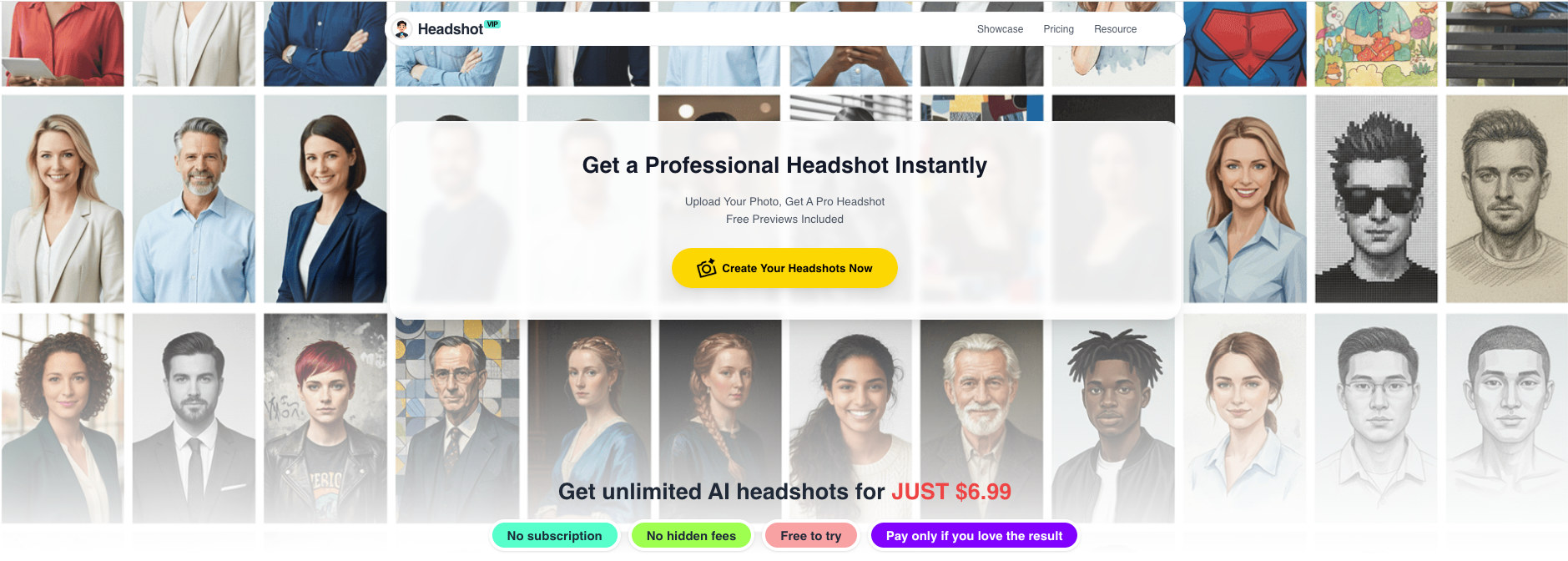
Alt: HeadshotVIP AI virtual headshot generator interface showing upload and business style options
Why use HeadshotVIP for AI virtual headshots?
✅ Business‑first styles
Every preset is designed for professional profiles—no cosplay, fantasy, or gimmicky filters.✅ High‑resolution, platform‑optimized output
Images are sized and sharpened for LinkedIn, resumes, and About pages, so you don’t have to fiddle with exports.✅ Identity consistency
Advanced facial recognition and modeling help keep your AI virtual headshots looking like you across multiple poses and outfits.✅ Team consistency at scale
Companies can lock in a shared style (background, crop, outfit level) and generate matching virtual business headshots for everyone, including remote employees.✅ Privacy‑conscious design
Photos are processed with privacy in mind; data handling is aligned with modern privacy expectations.
Limitations to be aware of (honest notes):
- Final quality still depends on your uploaded photos—poor lighting or extreme angles will limit what AI can do.
- Manual, pixel‑level retouching and fine‑tuned posing are more limited than working with a dedicated photographer in a studio.
For 90% of LinkedIn and business profile needs, though, HeadshotVIP gives you clean, professional AI virtual headshots at a fraction of the cost and time of traditional shoots.
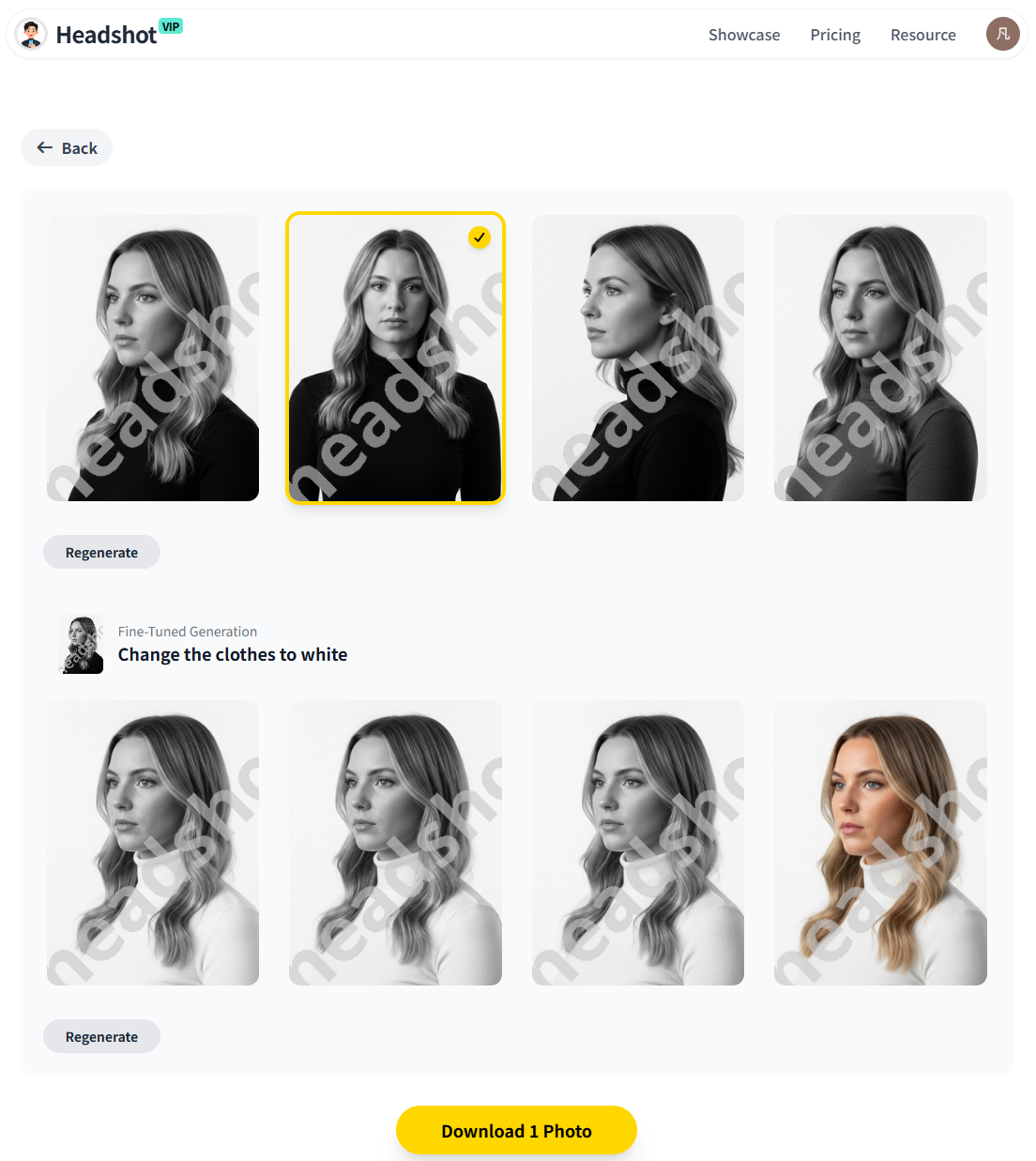
Alt: Example of AI-generated professional headshot from HeadshotVIP on neutral business background
Method 2: Using general AI headshot generators (Canva, HeadshotPro, Aragon, etc.)
If you’re already using another AI-generated headshot tool like Canva’s AI Headshot Generator, HeadshotPro, or Aragon, you can still apply the tips from this guide.
Most of these tools offer:
- Simple upload → generate → download flows
- Background and outfit choices
- A variety of styles, from casual to corporate
Pros of general tools:
- Often include extra editing tools (background changer, blemish remover, clothing swap)
- Many have free tiers or trials
- Can be used for other photos (social media, fun filters, non‑business content)
Cons compared to a business‑focused tool like HeadshotVIP:
- Style options are sometimes less focused on business and more on fun or casual looks
- You may need extra steps to crop and export correctly for LinkedIn and CVs
- Team consistency is harder—every user may pick a different style
- Some platforms are less transparent about data privacy and retention
If you go this route, use the same 7 pro tips above, and be extra careful with:
- Overly heavy smoothing / filters
- Backgrounds that scream “stock photo”
- Styles that look great in a feed but odd on a resume
HeadshotVIP vs other AI virtual headshot tools (at a glance)
Here’s a simplified comparison of how a specialist like HeadshotVIP stacks up against typical general AI headshot generators you see in the market.
| Feature / Use Case | General AI Generators (e.g., design tools) | Headshot‑focused SaaS (e.g., HeadshotPro, Aragon) | HeadshotVIP |
|---|---|---|---|
| Primary focus | Social / creative editing | Broad professional + creative use | Business profiles only |
| Business style presets | Basic | Many, but mixed with fun packs | Curated for LinkedIn, resumes, company sites |
| Team / company consistency | Manual at best | Usually available | Style‑consistent batch generation |
| Output optimization for LinkedIn & CVs | Needs manual crops/exports | Good | Specifically tuned for common professional platforms |
| Identity consistency across variants | Varies | Strong | Strong with identity modeling |
| Depth of editing tools (fun filters, etc.) | High | High | Focused on what helps business headshots |
| Best fit | Casual users, social media | Mixed personal + business | Professionals and teams needing credible virtual business headshots |
If your main goal is professional online identity, not playing with filters, you’ll usually get a faster, cleaner result from a business‑first tool like HeadshotVIP.
Quick checklist: make your AI virtual headshot work across all business profiles
Before you hit “Save” on LinkedIn or your About page, run through this list:
Does it look like you today?
Hairstyle, facial hair, glasses, age—close enough that people recognize you on Zoom.Is the crop clean?
Head-and-shoulders, no half‑cut shoulders, no huge dead space.Is the background quiet?
Nothing distracting behind your head; no heavy color clashes with your outfit.Does the style match your industry?
Your outfit and expression should feel normal for your peers and clients.Is it consistent across platforms?
Same or very similar image on LinkedIn, your website, and speaker bios builds trust.Would you be happy if this showed up next to your name in a press article or investor deck?
If the answer is “yes,” you’re good.
FAQ: AI virtual headshots for business in 2025
Q1: Are AI virtual headshots acceptable for LinkedIn and resumes?
A: Yes—as long as they look realistic and professional. Recent coverage (for example, studies cited in PetaPixel) shows many recruiters actually prefer clear, consistent AI headshots over low‑quality phone snaps. The key is that your AI professional headshot should look like you and match your industry norms.
Q2: How many selfies should I upload for best AI results?
A: Most tools work well with 6–15 high‑quality photos. It’s better to upload fewer sharp, well‑lit images than 30 random screenshots. Aim for different angles and expressions, but keep your look (hair, glasses, beard) consistent with real life.
Q3: Will my photos be used to train AI models?
A: This depends on the provider. Many modern tools, including HeadshotVIP, take a privacy‑first approach and process images with restricted use. Always read the privacy policy: look for statements about whether your photos are used for model training, how long they are stored, and how you can delete them.
Summary
A strong AI virtual headshot can easily outperform a rushed phone selfie—and often rivals studio work—if you:
- Feed the AI good source photos
- Use professional framing, outfits, and backgrounds
- Guide the style toward realistic, business‑appropriate looks
- Sanity‑check realism and brand fit before you publish
Tools like HeadshotVIP make this easier by focusing entirely on AI professional headshots for business profiles, with styles, crops, and resolutions tuned for LinkedIn, resumes, and team pages.
Try HeadshotVIP Now:
- Starter: $6.99 – ideal for a single LinkedIn‑ready headshot set
- Professional: $9.99 – more styles and higher‑resolution outputs
Related Articles
- ai-professional-headshot-branding-guide-2025
- boost-ai-professional-headshot-for-linkedin-2025-tips
- how-to-use-ai-virtual-headshots-for-business-2025
Current date: 2026-01-31