How to Use an AI Professional Headshot for Job Search (2025)
How to Use an AI Professional Headshot for Job Search (2025)
You finally got a sharp, polished AI professional headshot… now what?
Most people stop at “upload to LinkedIn and forget about it.” But your photo is often the first thing a recruiter or hiring manager sees — on your resume, LinkedIn, job boards, email, and even internal HR systems. If you only use it in one place, you’re leaving visibility (and responses) on the table.
In this guide, you’ll learn exactly how to use an AI professional headshot across your entire job search: resumes, LinkedIn, Indeed, portfolio sites, and more. We’ll walk through practical, non-fluffy tips, show common mistakes, and share a step‑by‑step workflow using HeadshotVIP so your photo actually helps you get interviews instead of just looking “nice.”
Why Your AI Professional Headshot Matters So Much in 2025
AI headshots are no longer a niche thing. According to coverage of recent recruiter surveys (for example, one study highlighted by PetaPixel), a majority of recruiters say they’re comfortable with — and often prefer — clean, AI‑enhanced headshots over blurry or poorly lit “real” photos.
Here’s why that matters for your job search:
First impressions are visual and fast
Recruiters often scan hundreds of profiles per week. A clear, friendly, professional photo makes them pause for a second instead of scrolling past.Consistency builds trust
When your LinkedIn, resume, portfolio, and Zoom avatar all show the same recognizable face, you feel more “real” and memorable — especially in remote hiring.AI levels the playing field
Not everyone can afford a photographer. An AI-generated headshot (when done well) can look like a $250 studio shoot, but you can create it from your bedroom.Some industries still judge your professionalism visually
Sales, consulting, leadership, customer-facing roles, and client work often rely on subtle cues: posture, expression, and clothing. A good headshot quietly signals “you’ll be comfortable putting me in front of clients.”
The key is using your AI virtual headshot strategically — not just generating one and hoping for the best.
Step 1: Choose the Right AI Professional Headshot for Your Goals
Before you plaster your photo everywhere, you need to pick the right one from your set. Many tools (including HeadshotVIP) generate dozens of variations, and not all of them are good for job search.
What a strong job‑search headshot looks like
Use this quick checklist when reviewing your AI-generated images:
Realistic likeness
- Your face shape, skin tone, and key features should look like you on a good day.
- Avoid images that change your eye color, jawline, or ethnicity.
- If friends say “this looks like your cousin,” don’t use it.
Neutral, professional expression
- Aim for a soft smile or relaxed neutral look.
- No exaggerated grins, “duck face,” or intense model poses.
- Think: approachable, confident, not stiff.
Simple, distraction‑free background
- Plain light grey, white, or soft gradient is ideal for LinkedIn and resumes.
- Avoid overly stylized backgrounds (neon, heavy bokeh, busy office scenes) for conservative roles.
Appropriate clothing for your target industry
- Corporate/finance: blazer, collared shirt, simple colors.
- Tech/startups: neat shirt or smart casual.
- Creative fields: you can be a bit more expressive, but still tidy and intentional.
Clean framing
- Head and shoulders visible.
- Your face centered, not cropped at the chin or top of the head.
- No odd hands or props creeping into the frame.
If you’re unsure, shortlist 3–5 options and ask:
- “Which one feels most like me?”
- “Which would you trust if you were hiring for my role?”
Step 2: Create Your Headshot with HeadshotVIP (Recommended)
Method 1: Using HeadshotVIP (Recommended)
Use Case:
Job seekers, students, and professionals who want LinkedIn‑ready, resume‑friendly headshots without paying for a studio shoot. Also ideal for small teams needing consistent business headshot creation for their “About” pages or company profiles.
HeadshotVIP focuses specifically on professional, business‑focused looks instead of casual or gimmicky photos.
Operation Steps
Go to HeadshotVIP
- Visit the official website: https://headshot.vip.
Create an account and choose a plan
- Pick a plan based on how many styles or images you need:
- Starter: best if you just want one strong AI headshot for resume and LinkedIn.
- Professional: for more styles (corporate, startup, executive, creative).
- Team / Business: for consistent AI virtual headshot sets across a whole team.
- Pick a plan based on how many styles or images you need:
Upload your selfies
- Upload 6–15 clear photos:
- Different angles (front, slight left/right).
- Good lighting (daylight by a window is ideal).
- No heavy filters, sunglasses, or extreme makeup changes.
- In my experience, fewer high‑quality photos beat 30 random selfies.
- Upload 6–15 clear photos:
Choose your styles
- Select from business‑focused presets like:
- LinkedIn / corporate headshot
- Startup founder / tech
- Executive / leadership
- Creative professional
- For job search, start with LinkedIn / corporate plus one style that fits your industry.
- Select from business‑focused presets like:
Generate your AI professional headshots
- Hit generate and let HeadshotVIP’s AI process your photos.
- You’ll get a batch of high‑resolution, professional images optimized for common platforms.
Download and organize your favorites
- Shortlist 2–3 serious, professional photos.
- Download in high resolution and save versions named like:
linkedin_headshot.jpgresume_headshot.pngportfolio_headshot.jpg
This makes it easy to use the right ratio/size for each platform.
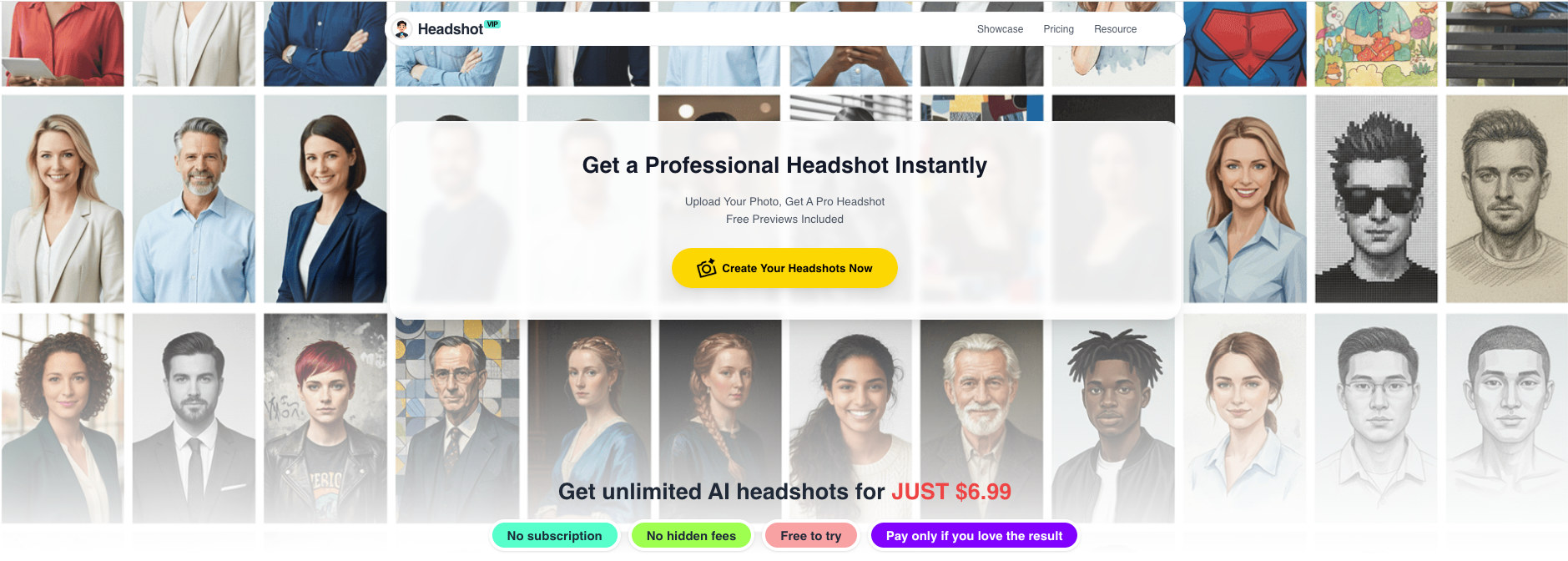
Alt: HeadshotVIP AI professional headshot generator interface creating business portraits
Advantages of HeadshotVIP for job search
✅ Business‑first styles
Focused on LinkedIn, resumes, company websites, and bios — not just fun filters.✅ High‑resolution, platform‑optimized output
Images are generated at resolutions that work well for LinkedIn, CVs, and web profiles without looking pixelated.✅ Identity consistency
Advanced facial modeling helps keep your face recognizable across multiple styles — perfect when you want to look like the same person everywhere.✅ Team‑friendly
Style‑consistent batch generation makes it easy for startups or agencies to get a uniform look for everyone’s profile pictures.✅ Privacy‑minded
HeadshotVIP is built with privacy‑focused image handling. Your uploads are used to generate headshots, not to quietly build unrelated AI models.
Limitations to be aware of (honest view):
- Results still depend on your original photos. Poor lighting or heavy filters will reduce realism.
- Pose control is more limited than a live photographer; you’re choosing from what the AI generates, not directing it shot‑by‑shot.
Method 2: Using General-Purpose AI Image Tools (e.g., Canva, Other Generators)
You’ll also see tools like Canva’s LinkedIn headshot generator, or generic AI avatar tools (including services reviewed in “best AI headshot generator” posts).
These can be helpful if:
- You already use Canva for resumes or social media designs.
- You just need a quick, free AI-generated headshot to get started.
Typical workflow with tools like Canva:
- Open the app or website and choose the AI headshot or profile photo tool.
- Upload a clear selfie.
- Select your gender identity and a general style (professional, casual, etc.).
- Generate a set of headshots.
- Use built‑in photo editing (background remover, filters, etc.) to tweak the image.
- Download as JPG/PNG.
Pros:
- Low or no cost to try.
- Convenient if you already design your resume or social posts there.
- Extra editing tools (background removal, filters, cropping).
Cons (compared to HeadshotVIP):
- Less focused on business headshot creation — lots of social/creative looks mixed in.
- Style may look more “template‑like” and less tailored to job search.
- Identity consistency can vary across outputs, making your face look slightly different from one platform to another.
If you’re serious about your job search (or applying to competitive roles), it’s worth using a specialized tool like HeadshotVIP for your “official” AI professional headshot, and keeping general tools for secondary content.
Step 3: Use Your AI Professional Headshot on LinkedIn the Right Way
Most reference content stops at “upload to LinkedIn.” Here’s how to optimize your LinkedIn presence so your AI headshot actually improves recruiter response rates.
1. Set your profile photo correctly
- Upload your best AI professional headshot.
- Crop to show head and upper shoulders.
- Make sure:
- Your eyes are centered horizontally.
- There’s a little space above your head.
- The background is simple and not clashing with LinkedIn’s UI.
Use LinkedIn’s built‑in adjustments lightly:
- Slight brightness/contrast adjustment is fine.
- Avoid extreme filters that make the image look obviously edited.
2. Coordinate your banner image
Your banner should support the story your photo tells:
- Tech roles: simple gradient or tech‑themed banner with your title or skills.
- Design/creative: subtle portfolio montage or brand colors.
- Students: a clean, aspirational image (city skyline, campus, or simple texture) with your field of study.
The goal: when someone lands on your profile, your AI professional headshot + banner together say, “I’m serious about my work, and I know what I’m about.”
3. Match your headline and About section to your image
A mismatch is jarring. Example of bad mismatch:
- Photo: sharp executive‑style AI virtual headshot, blazer, confident.
- Headline: “Trying to figure out what I want to do // unemployed and broke lol”.
Instead:
- If your headshot looks like a polished consultant, your headline might be:
“B2B Sales Professional | 5+ Years in SaaS | Helping Teams Close Enterprise Deals” - Students can use:
“Computer Science Graduate (2025) | Interested in Backend, Cloud, and DevOps”
Your photo sets a visual tone; your text should back it up.
4. Turn on “Open to work” wisely
If you use the green “Open to work” ring:
- Make sure your AI headshot still looks natural and doesn’t clash with the ring color.
- Keep expressions friendly, not desperate — you want to look confident, not worried.
If you’re already employed and searching quietly, skip the ring and just use the “Open to work” settings privately visible to recruiters.
Step 4: Add Your AI Headshot to Your Resume (Without Making It Weird)
Including a photo on your resume is common in Europe, Asia, and many creative fields, but still debated in parts of North America. Use your judgment based on your industry and region.
When it makes sense, here’s how to do it professionally:
Resume photo best practices
Size and placement
- Place a small version (around 1–1.5 inches wide on A4/Letter) near your name at the top.
- Don’t dominate the page — your experience still matters most.
File format
- If you’re saving as PDF (recommended), embed the image at web resolution (150–300 dpi).
- Use a PNG or JPG from HeadshotVIP’s AI headshot for resume output.
Consistency with LinkedIn
- Use the same or very similar image as on LinkedIn so recruiters instantly recognize you when they cross‑check.
Applicant Tracking Systems (ATS)
- Most modern ATS tools can handle resumes with images, but if you’re applying to very traditional, highly automated environments, you may want:
- One version with photo (for networking, referrals, and smaller companies).
- One plain, text‑heavy version without a photo (for strict online portals).
- Most modern ATS tools can handle resumes with images, but if you’re applying to very traditional, highly automated environments, you may want:
Step 5: Use Your AI Headshot on Job Boards and Portfolios
You should look like the same person wherever a recruiter sees you. Here’s how to extend your AI professional headshot beyond LinkedIn and your CV.
1. Job boards (Indeed, Glassdoor, local portals)
- Upload your LinkedIn‑style AI headshot to your profile.
- Keep background simple to avoid clashing with each site’s branding.
- Double‑check how the site crops your image — some use circles, others squares.
Tip: Many recruiters browse internal talent pools of these sites. A professional photo can make your profile stand out among faceless grey initials or low‑quality selfies.
2. Personal websites and portfolios
If you’re in tech, design, writing, or freelancing, you should have a simple site with:
- Your AI headshot near your name and title.
- A short tagline like: “Product Designer focusing on SaaS dashboards and B2B tools.”
- Consistent use of the same image across:
- “About” page
- Author bio sections on blog posts
- Contact page
A HeadshotVIP business headshot creation set is great here: you can choose:
- One formal image for the homepage.
- One slightly more relaxed image for your blog or social media links.
3. Email, Zoom, and Slack
Subtle, but powerful:
- Email signature: Add a tiny (40–60 px) version of your AI professional headshot in your signature.
- Zoom / Teams / Meet: Set your profile picture to the same headshot so when your camera is off, your face still appears.
- Slack / Discord (for communities): If you’re in job‑search communities or networking groups, use the same photo there.
This quiet repetition builds recognition: “Oh, I’ve seen this person on LinkedIn / in that email thread.”
Step 6: Adjust Style by Role and Industry (With Examples)
Not every job should use the same exact look. Here’s how to tailor your AI-generated headshot style using something like HeadshotVIP’s presets.
1. Corporate & finance roles
- Clothing: blazer, collared shirt, muted colors (navy, black, white, light blue).
- Background: plain light background, subtle gradient, or light office blur.
- Expression: small, confident smile.
Use this for:
- Resume if including a photo
- Company directories / internal HR systems
2. Tech & startup roles
- Clothing: neat shirt, simple sweater, or casual blazer. Slightly more relaxed.
- Background: soft color gradient, subtle modern office or coworking space.
- Expression: open, friendly, approachable.
Use this for:
- Portfolio site
- Startup job boards / communities
3. Creative, marketing, and design roles
- Clothing: can be more colorful or expressive but still polished.
- Background: clean but with a bit more personality (color, texture).
- Expression: warm smile, maybe a bit more “human” vs. ultra‑corporate.
Use this for:
- Portfolio
- About page
- Social platforms like Instagram/Behance (while still keeping one formal version for LinkedIn)
Pro tip using HeadshotVIP:
Generate two styles at once:
- One “formal LinkedIn headshot generator” style.
- One “creative professional” style.
Use the formal version for applications and the creative version for personal branding platforms — while keeping your face consistent between them.
Step 7: Be Transparent and Ethical With AI Headshots
AI in hiring is still a sensitive topic, so it’s smart to think about trust.
Do you have to say it’s AI-generated?
Right now, most candidates don’t explicitly label their headshots as AI-generated, and many recruiters can’t easily tell if the result is realistic and aligned with the person’s actual appearance.
The important part is honesty by outcome:
- It should look like you.
- You should be easily recognizable when you show up on video or in person.
- You shouldn’t dramatically alter your age, ethnicity, or body type.
If someone asks directly, you can simply say:
“It’s an AI‑enhanced photo based on my real selfies — I used a professional headshot tool instead of going to a studio.”
That’s accurate and reasonable.
Avoid these red flags
- Extreme beautification (fully plastic skin, drastic slimming, or different facial structure).
- Using a glamorous or dating‑app style image as your primary AI headshot for job applications.
- Switching photos so often that people can’t tell which one “is you.”
Think of AI as doing what a good photographer and retoucher would do:
better lighting, better background, best version of you — not a different person.
Practical Tips to Get the Most Out of Your AI Professional Headshot
Use one “anchor” photo everywhere
Pick a single best headshot generated with HeadshotVIP and use it on:- Resume (if you use photos)
- Job boards
- Zoom
- Email signature
That repetition is what makes you memorable.
Keep a “casual but clean” backup for social platforms
For places like X/Twitter or non‑work Instagram, you can use a slightly more relaxed AI headshot. Just don’t go so casual that it hurts your professional image when recruiters search your name.Refresh every 12–18 months
As you mature in your career (promotion, industry switch, new city), re‑generate a fresh set:- Same face, updated style (more executive, more specialized, etc.).
- This keeps your online presence in sync with where you’re going, not just where you were.
Summary
A great AI professional headshot is more than a nice‑to‑have. Used correctly, it becomes a core part of your job search toolkit: it helps recruiters recognize you across platforms, makes your applications feel more human, and quietly signals professionalism before you say a word.
Instead of scattering random photos, you can:
- Use HeadshotVIP to generate realistic, high‑resolution business portraits.
- Pick one strong, authentic image as your “anchor” photo.
- Apply it consistently on LinkedIn, resumes, job boards, portfolios, email, and Zoom.
- Adjust style slightly by industry while staying recognizably you.
- Stay honest and realistic so your photo builds trust, not doubt.
If you’re about to update your job search materials, this is one of the fastest wins you can get.
Try HeadshotVIP Now:
- Starter (individual): $6.99 – perfect for one polished LinkedIn and resume headshot
- Professional: $9.99 – more styles, more high‑resolution options for multi‑platform branding
Related Articles
- ai-professional-headshot-branding-guide-2025
- best-ai-professional-headshot-generator-for-linkedin-2025
- ai-headshot-generation-privacy-protection-guide-2025
Current Date: 2026-01-25