Best AI professional headshot generator for LinkedIn (2025)
Best AI professional headshot generator for LinkedIn (2025)
If your LinkedIn photo still looks like a cropped vacation picture or a blurry Zoom screenshot, you’re not alone. Professional headshots are expensive, studio bookings are a hassle, and most of us don’t own studio lighting. That’s why searches for a LinkedIn headshot generator have exploded—people want a fast, affordable way to look credible online.
In this guide, you’ll see how AI tools stack up for AI professional headshots, where they fall short, and exactly how HeadshotVIP fits in. We’ll compare popular options like Canva and Monica, then walk through a clear workflow to create a LinkedIn-ready, business headshot and actually optimize it for more profile views.
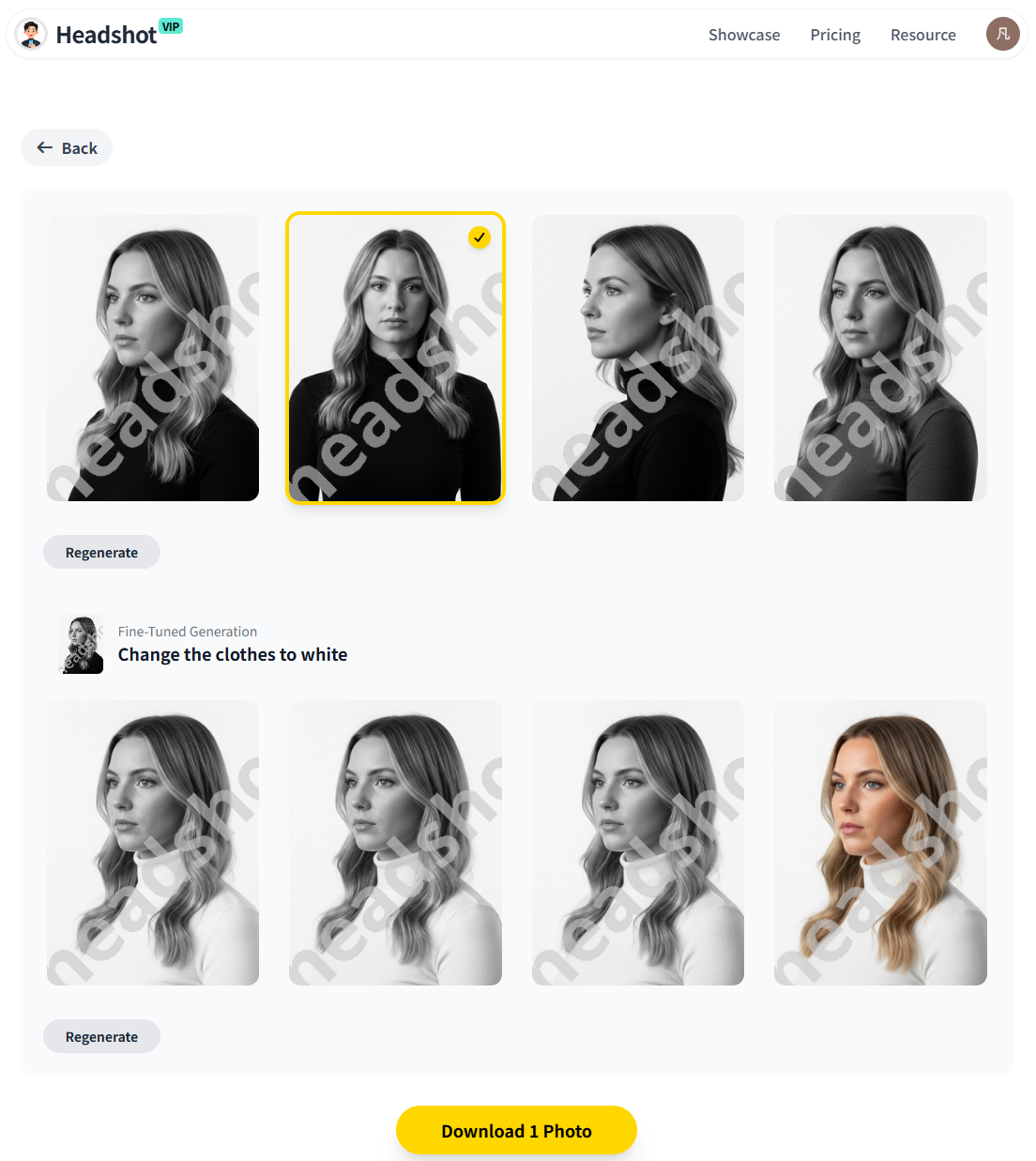
What makes a great AI LinkedIn headshot generator in 2025?
Most tools promise “instant professional photos,” but for LinkedIn, the bar is higher than just making your selfie look prettier. Recruiters and clients are judging your trustworthiness and professionalism in a split second.
Here’s what actually matters when choosing an AI-generated headshot tool for LinkedIn:
1. Realistic, business-appropriate output
A good AI professional headshot should:
- Look like you (no face-swapping weirdness)
- Keep natural skin texture (not overly airbrushed)
- Use neutral, uncluttered backgrounds
- Avoid goofy filters or cartoon styles
AI tools like Canva’s headshot generator and Monica’s AI LinkedIn photo generator focus on enhancing selfies and swapping backgrounds. HeadshotVIP goes further by training identity-consistent models per user, which usually leads to more realistic, repeatable results across multiple images.
2. LinkedIn-ready framing and resolution
LinkedIn crops your profile photo into a circle and displays it small on feed cards. Your generator should:
- Center your face and shoulders
- Output high resolution to keep details in the crop
- Use aspect ratios that still look good when circularly cropped
HeadshotVIP is tuned for LinkedIn, CVs, and About pages, so it optimizes output ratios and resolution specifically for professional platforms.
3. Business-focused styles, not random aesthetics
Instagram-style edits or fantasy filters don’t help you get hired. For LinkedIn, you want:
- Corporate, executive, startup, and creator-style looks
- Subtle variations (blazers, shirts, casual-smart outfits)
- Backgrounds that match your industry vibe (office, neutral, techy)
Tools like Monica offer a few “business” styles (business, professional, academic, tech, urban). Canva lets you manually edit backgrounds. HeadshotVIP focuses entirely on business headshot creation with styles named and tuned for professional use: LinkedIn, corporate, startup, executive, creative.
4. Privacy and data handling
You’re uploading your face, sometimes multiple selfies. You should know:
- Are images used to train other models?
- How long are they stored?
- Is there clear deletion policy?
Monica states images are removed within 48 hours. Canva explains usage in its privacy policy. HeadshotVIP takes a privacy-first approach: images are processed only for generating your headshots and handled with strict security; no resale or unrelated training.
5. Control vs. simplicity
You want a straightforward flow: upload → choose style → generate → download. At the same time, a bit of control helps:
- Ability to select business styles
- See multiple variations
- Download full-resolution images
Canva leans towards editing freedom after generation. Monica keeps it extremely simple. HeadshotVIP aims to keep the process fast while giving you style and batch options that make it better for serious LinkedIn use and for teams.
How to create an AI professional LinkedIn headshot
Method 1: Using HeadshotVIP (Recommended)
Use Case:
Professionals, job seekers, founders, freelancers, and remote teams who want consistent, studio-quality AI-generated headshots that are specifically tuned for LinkedIn, resumes, and company sites—without going to a photographer.
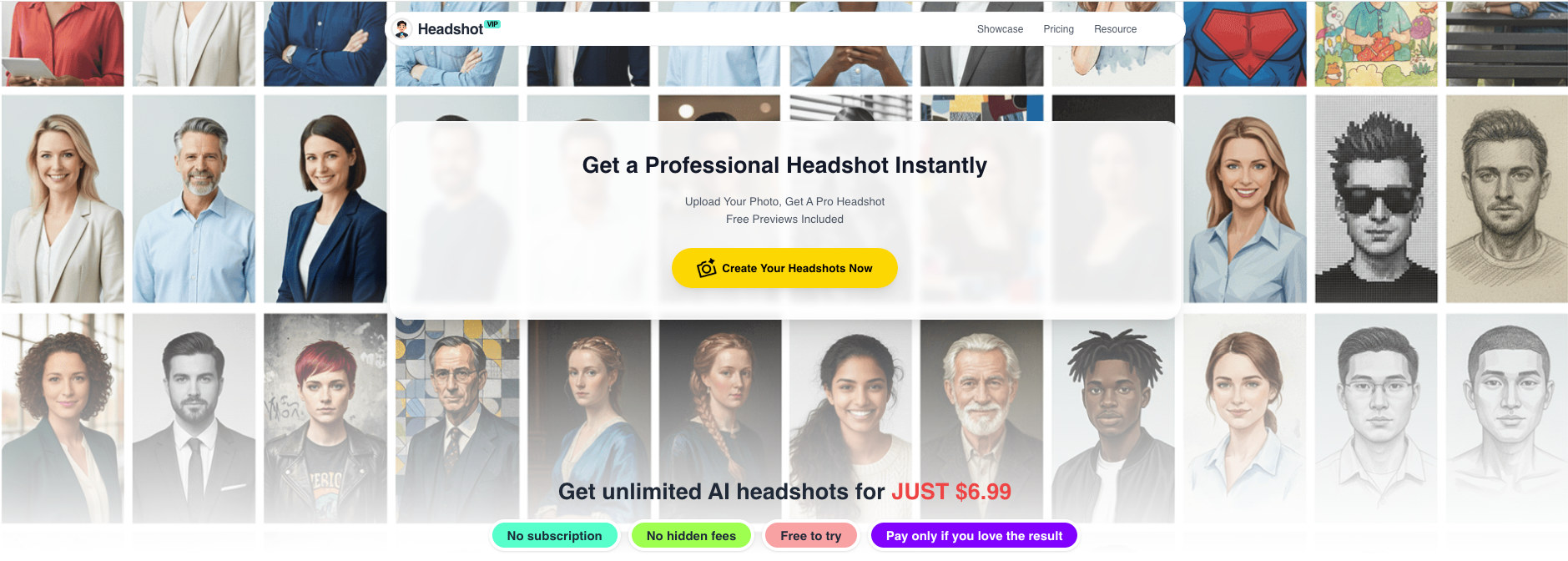
Operation Steps
Go to HeadshotVIP
- Open: https://headshot.vip
- Create an account or log in with your email.
Prepare a few good selfies
- Use 5–10 clear photos if possible:
- Face fully visible (no sunglasses, heavy shadows, or strong filters)
- Different angles (front, slight left/right)
- Neutral or slight smile
- Avoid group photos or extreme close-ups.
- Use 5–10 clear photos if possible:
Upload your photos
- On the dashboard, choose Create Headshots.
- Drag and drop your selfies or click Upload.
- Check each image is sharp and well-lit; delete poor ones before confirming.
Choose a professional style
- Select from business-focused styles such as:
- LinkedIn – neutral background, smart-casual outfits, recruiter-safe look
- Corporate – suits/blazers and formal backgrounds
- Startup – relaxed but polished, modern environments
- Executive – authoritative framing, slightly more formal
- Creative – more personality while staying professional
- You can usually pick more than one style for variety.
- Select from business-focused styles such as:
Adjust basic preferences
- Confirm:
- Gender presentation (if supported)
- General vibe: more formal vs. more casual
- Submit your generation request.
- Confirm:
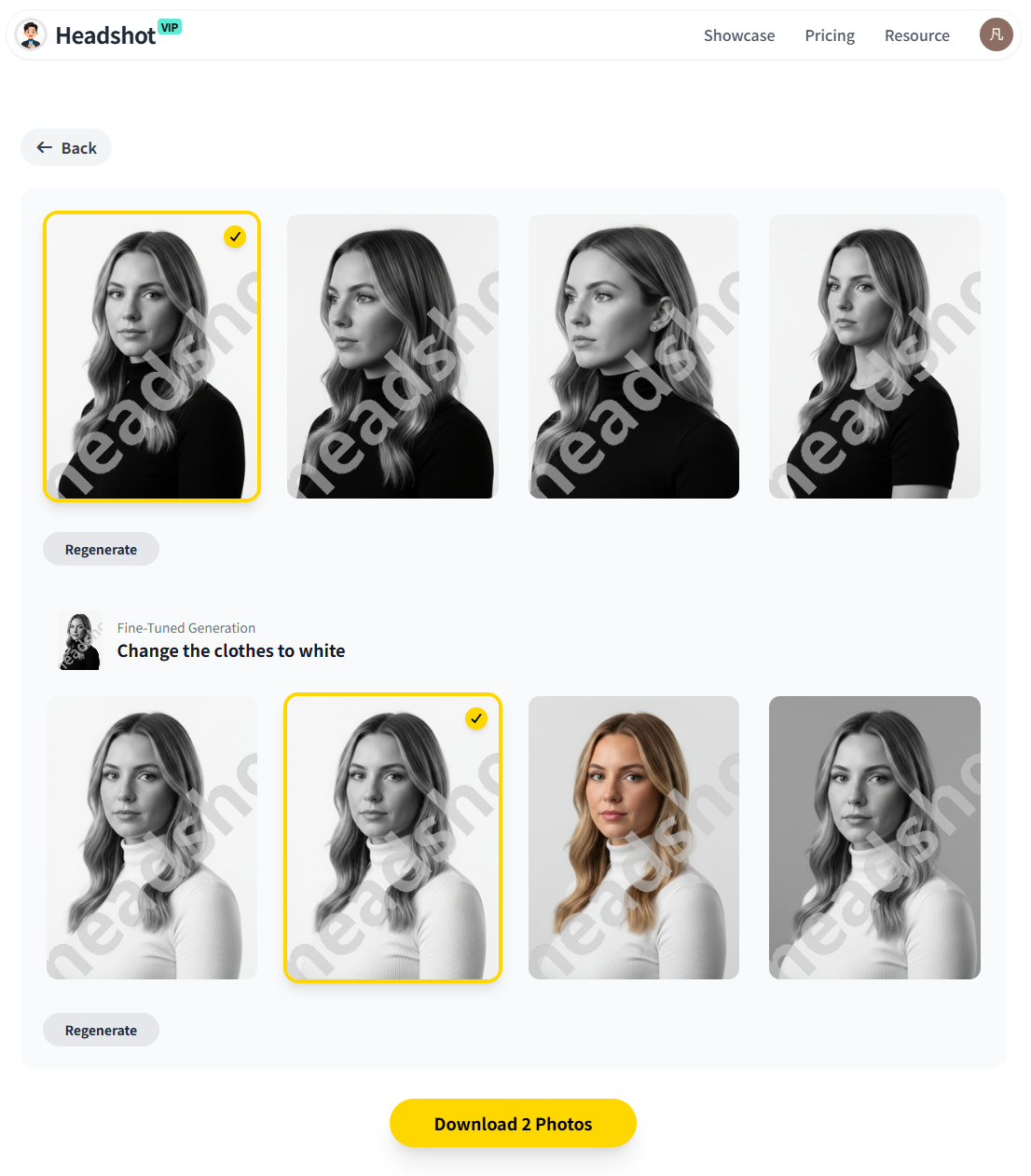
Generate and review results
- Wait for the AI to process your images (a short queue is normal).
- Review all generated headshots:
- Check likeness (does it look like you?)
- Check expression, background, outfit, and lighting.
- Save your favorite 3–5 options.
Download high-resolution images
- Download selected photos in high resolution.
- HeadshotVIP generates 4K-quality outputs suitable for:
- Resumes/CVs
- Company “About us” pages
- Speaker bios and press kits
Upload to LinkedIn and adjust crop
- Go to your LinkedIn profile → click your photo → Add photo or Change photo.
- Use the circle crop to:
- Center your eyes roughly 1/3 from the top
- Keep shoulders visible if possible
- Avoid heavy filters; LinkedIn already compresses images.
Advantages of HeadshotVIP for LinkedIn
- ✅ Business-first styles – All presets are designed for professional use (LinkedIn, resumes, team pages), not social filters.
- ✅ High-resolution 4K output – Crisp details even after LinkedIn compression and circular cropping.
- ✅ Identity consistency – Advanced facial modeling keeps your face recognizable across multiple images.
- ✅ Team-ready – Batch generation and style consistency make it ideal for startups and remote teams needing matching headshots.
- ✅ Privacy-focused – Images are handled securely and used only for generating your headshots.
- ✅ Optimized for LinkedIn and CVs – Output ratios and framing work well for recruiter views and profile previews.
- ✅ Straightforward workflow – Upload → pick styles → generate → download, without learning complex design tools.
Method 2: Using general design or browser-based AI headshot tools
If you already live inside design tools or want something totally free to test the idea, you can also use tools like Canva or Monica.
Option A: Canva free AI headshot generator
Canva offers a Profile Photo / AI headshot app that upgrades selfies.
How it works (roughly, based on Canva’s flow):
- Open Canva AI Headshot Generator.
- Create a new design or open the Profile Photo app.
- Upload a selfie (clear, well-lit, face centered).
- Select your gender identity and optionally preserve your facial expression.
- Generate AI headshots and choose a favorite.
- Use Canva’s built-in tools (Background Remover, Magic Edit, filters) to tweak and download.
Pros:
- Easy to use if you already design in Canva.
- Includes editing tools for backgrounds, color correction, and minor retouching.
- Offers some free credits to try.
Cons (vs. HeadshotVIP):
- Not tuned specifically for LinkedIn or business contexts; more general-purpose.
- Resolution and framing may require extra manual tweaking for professional use.
- Styles are broader (social media, avatars, fun edits), not purely business headshot creation.
- Less focus on consistent styles for teams or company-wide headshots.
Option B: Monica AI LinkedIn photo generator
Monica provides a browser-based AI LinkedIn photo generator with simple steps.
How it works (based on Monica’s page):
- Go to the Monica AI LinkedIn Photo Generator.
- Upload your photo (JPG/PNG, up to 10 MB).
- Choose from six styles: business, professional, academic, urban, studio, or tech.
- Generate and download your AI LinkedIn photo.
- Optionally explore Monica’s other image tools (cartoons, wallpapers, etc.).
Pros:
- Very fast and simple: upload → choose style → download.
- Multiple professional-flavored styles (business, tech, academic).
- Claims to delete data within 48 hours and not store/share user data.
Cons (vs. HeadshotVIP):
- More general-purpose AI platform; LinkedIn photos are one of many side tools.
- Less emphasis on 4K-level resolution and platform-optimized output.
- Limited control over detailed business styling beyond broad categories.
- Free trial is limited; ongoing use may require a premium plan that isn’t tailored around headshots specifically.
HeadshotVIP vs other LinkedIn headshot generators
Here’s a quick side‑by‑side of how common solutions compare for LinkedIn headshot generator use:
| Feature / Need | Canva AI Headshot Generator | Monica AI LinkedIn Photo Generator | HeadshotVIP (Recommended) |
|---|---|---|---|
| Primary focus | General design & social content | All-purpose AI copilot with some image tools | Professional / business headshots |
| LinkedIn-specific optimization | Indirect (you must design/crop yourself) | Yes, dedicated LinkedIn photo generator | Yes, styles and output tuned for LinkedIn & resumes |
| Styles available | Many creative and social styles | 6 styles (business, professional, academic, urban, studio, tech) | LinkedIn, corporate, startup, executive, creative |
| Resolution | Good, depends on export settings | Decent, web-oriented | High-res, up to 4K-quality outputs |
| Identity consistency across images | Basic | Basic | Advanced identity consistency modeling |
| Editing flexibility | Strong (backgrounds, filters, text, layouts) | Minimal, purpose-built | Moderate: focused on headshots, not design layouts |
| Team / company-wide use | Manual setup, not optimized for uniform headshots | Not tailored for teams | Yes, style-consistent batch generation for teams |
| Privacy focus | Detailed policy, but broad usage scope | Claims deletion within 48 hours, no sharing | Privacy-focused, only used for generating your headshots |
| Best for | Designers, marketers, casual profile updates | Quick 1-off upgrades, browser-based users | Professionals, job seekers, founders, and teams |
How to choose the right AI headshot tool for your situation
Use this simple checklist:
You just need “better than my selfie,” quickly and free
- Try: Canva or Monica (good to test the idea).
- Trade-off: Less control over business tone and team consistency.
You’re actively job hunting or changing careers
- Priorities: Trustworthiness, clarity, recruiter-safe styling.
- Choose: A tool focused on AI professional headshots, not fun edits.
HeadshotVIP is designed with LinkedIn and resumes as primary use cases.
You’re a founder, freelancer, or creator building a brand
- You need: A look that works on LinkedIn, your site, and speaking bios.
- Choose: A tool with multiple business styles (corporate, startup, creative) and high resolution so one session covers all platforms.
You manage a team or startup website
- You need: Consistent backgrounds, lighting, and style across everyone.
- Choose: A solution with style-consistent batch generation and team options—this is exactly where HeadshotVIP’s Team / Business plan shines.
7 practical tips to get a better AI LinkedIn headshot (before & after)
No AI tool can fix a terrible input photo. You’ll get dramatically better results if you set things up well.
Start with clean, simple selfies
- Even if the final image is AI-generated, your base selfies should:
- Have your full face visible
- Avoid harsh shadows and heavy filters
- Use plain backgrounds where possible
- Even if the final image is AI-generated, your base selfies should:
Use natural, soft lighting
- Stand facing a window during the day.
- Avoid overhead yellow lights and strong backlighting.
- This helps the AI understand your features and skin tone.
Choose outfits that match your target role
- Applying for finance, consulting, law? Go more corporate.
- Working in tech, startups, or creative fields? Smart-casual is often ideal.
- HeadshotVIP’s styles (corporate vs. startup vs. executive) help align the final look with your industry.
Aim for a relaxed, approachable expression
- A slight smile usually outperforms a very serious face on LinkedIn.
- Avoid exaggerated expressions; they can confuse AI models.
Generate multiple options, pick 1–2 best
- Don’t stop at the first good-looking shot.
- Shortlist 3–5, then choose 1 main and 1 backup.
- Look for:
- Clear eye contact
- Natural skin texture
- Minimal visual distractions
Check the image in LinkedIn’s circle crop
- Upload the chosen headshot and preview:
- Is your face centered and fully visible?
- Does the background look clean in a small circle?
- Make minor adjustments or try a tighter crop if needed.
- Upload the chosen headshot and preview:
Keep your headshot consistent across platforms
- Use the same or very similar headshot on:
- Personal website
- Resume/CV
- Portfolio sites
- This consistency helps people recognize you and builds trust.
- Use the same or very similar headshot on:
If you want more advanced best practices, LinkedIn’s own profile photo recommendations emphasize clear lighting, neutral backgrounds, and dressing for your role—exactly what business-focused AI tools like HeadshotVIP are built around.
FAQ: AI-generated LinkedIn headshots
Q1: Are AI LinkedIn headshots acceptable to recruiters?
A: In most cases, yes. Recruiters mainly care that you look professional, trustworthy, and like a real person. As long as your AI-generated headshot looks natural (no extreme retouching, fantasy effects, or obvious distortions) and resembles you in real life, it’s perfectly fine. Many professionals already use AI-enhanced photos without issues.
Q2: How many photos should I upload to an AI headshot generator?
A: More variety usually improves results. With tools like HeadshotVIP, 5–10 clear selfies from slightly different angles work best. Avoid group shots, heavy makeup filters, or photos where part of your face is covered. Mixing indoor and outdoor lighting is okay as long as your features stay clear.
Q3: What if I don’t like my first AI headshot results?
A: That usually means the input or style choice can be improved. Try:
- Uploading sharper, better-lit selfies
- Choosing a different business style (e.g., corporate vs. startup)
- Adjusting your expression (slight smile, relaxed shoulders)
With HeadshotVIP, you can generate multiple variations; it’s normal to discard a few and keep only the best 1–3 images.
Summary
You don’t need an expensive studio session to get a strong LinkedIn photo anymore. The right LinkedIn headshot generator can turn everyday selfies into realistic, business-ready portraits that help you stand out to recruiters and clients.
General tools like Canva and Monica are handy for quick upgrades and simple experiments. But if you’re serious about your professional image—or you need consistent, high-res headshots for a team—HeadshotVIP is built specifically for business headshot creation: 4K quality, LinkedIn-optimized styles, identity consistency, and privacy-first processing.
Try HeadshotVIP Now:
- Starter: $6.99 – Affordable option for individuals who need a set of high-quality, LinkedIn-ready AI headshots.
- Professional: $9.99 – More styles, higher-resolution outputs, and extra flexibility for broader personal branding.
Related Articles
Current Date: 2026-01-08