Boost AI professional headshot results with 7 expert tips (2025)
Boost AI professional headshot results with 7 expert tips (2025)
If you’ve tried an AI professional headshot generator and thought, “Nice, but that doesn’t quite look like me,” you’re not alone.
Common issues: plastic-looking skin, weird eyes or teeth, odd poses, or a vibe that doesn’t match your brand at all.
The good news: most of this isn’t the AI tool’s fault. It’s usually about how you feed and guide the model.
Here’s how to fix that.
In this guide, you’ll get 7 practical, advanced tips that work with almost any AI headshot generator (including HeadshotVIP): better training photos, smarter prompts, brand-consistent styling, and platform-specific crops so your AI-generated headshot looks realistic, professional, and ready for LinkedIn, resumes, and websites.

Why most AI professional headshots miss the mark
Most reference content (like Canva’s feature page or Aragon’s landing page) focuses on “upload → click → download”. That works, but it rarely gets you the best possible result.
There are three common reasons AI headshots look off:
Bad source photos
Low light, heavy filters, sunglasses, extreme angles, or inconsistent hairstyles confuse the model.No clear “professional” direction
If you don’t specify where the photo will be used (LinkedIn vs Instagram vs website “About” page), the AI will guess.Ignoring platform and branding details
Crops, aspect ratios, dress codes, and brand colors matter more than people realize—especially for LinkedIn and corporate sites.
The rest of this article fixes those three issues with concrete, repeatable techniques.
7 expert tips to dramatically improve any AI professional headshot
Below are the 7 tips. They’re tool-agnostic, but I’ll point out where HeadshotVIP gives you an easier path.
- Start with “AI-ready” training photos
- Control lighting, angle, and expression before you upload
- Use tight, professional prompts (not artsy ones)
- Lock in your personal brand style across all headshots
- Generate for the platform, not just for aesthetics
- Fix small issues with light retouching, not heavy filters
- Build consistent team / multi-profile sets the smart way
Let’s break each one down.
Tip 1: Start with “AI-ready” training photos
AI generators are pattern-matching machines. If you feed them messy data, you get messy results.
Aim for 8–20 photos (or the minimum your tool recommends) that match these rules:
Do:
- Use sharp, well-lit images (natural daylight from a window is ideal).
- Make sure your face is fully visible (no sunglasses, no big hats, minimal hair over eyes).
- Include head-and-shoulders framing, not just far-away full-body shots.
- Show your current hairstyle, facial hair, and glasses if you wear them daily.
- Include a mix of neutral and slight-smile expressions.
Avoid:
- Heavy beauty filters or AR effects.
- Club lighting, harsh shadows, or colored lights.
- Extreme angles (lying down, looking up from below).
- Old photos with totally different hair/weight/age.
Quick rule of thumb:
If you wouldn’t use the photo as-is on LinkedIn, it probably shouldn’t be a training image for an AI professional headshot.
How HeadshotVIP helps:
HeadshotVIP’s model is tuned for identity consistency, so a smaller number of high-quality, on-brand selfies usually beats a huge dump of random photos.
Tip 2: Control lighting, angle, and expression before you upload
Canva, Aragon, and similar tools talk a lot about fixing lighting after generation. That’s useful, but the biggest quality jump comes from getting these three right before upload.
1. Lighting
- Face a window or soft light source.
- Avoid overhead lights that create eye shadows.
- Skip backlighting (a bright window behind you).
If your original selfie is grainy or underexposed, every AI variant of it will carry some of that weirdness.
2. Angle
For a professional headshot:
- Hold the camera at eye level.
- Slightly angle your body (10–20°) rather than facing dead-on; then look back to camera.
- Keep your chin relaxed (not tucked too low, not raised too high).
This gives the AI a clear reference for a flattering, business-friendly pose.
3. Expression
Recruiters and clients scroll quickly; your expression sets the tone.
- Aim for a soft, genuine smile or relaxed neutral face.
- Avoid exaggerated “selfie faces,” duck lips, or extreme expressions.
- Be consistent across most training photos so the AI learns your typical look.
With HeadshotVIP:
Because the system is optimized for professional use cases (LinkedIn, resumes, corporate sites), neutral-friendly expressions in your input photos tend to produce more usable output per batch.
Tip 3: Use tight, professional prompts (not artsy ones)
Many AI image tools let you customize style, outfit, and environment—sometimes via prompt boxes, sometimes via option choices. This is powerful, but also where people go wrong.
Overly “creative” prompts cause:
- Unrealistic skin or eyes
- Distracting backgrounds
- A vibe that doesn’t fit LinkedIn or business sites
A simple prompt formula that works in 2025
Use this structure (adapt to your tool’s UI):
[Pose] + [Lighting] + [Outfit] + [Background] + [Platform]
Example for LinkedIn:
“Sharp head-and-shoulders portrait, soft natural lighting, navy blazer over light shirt, simple blurred office background, professional LinkedIn profile photo.”
Example for a startup founder’s website:
“Relaxed ¾ portrait, clean studio lighting, smart-casual shirt, subtle gradient background in brand colors, friendly founder photo for SaaS landing page.”
Words to use for realistic, professional output:
- “natural lighting”
- “soft studio lighting”
- “subtle background blur”
- “professional headshot”
- “LinkedIn profile photo” / “corporate website bio photo”
Words to avoid for serious use:
- “hyper-realistic ultra-glamour”
- “cinematic dramatic shadows”
- “fantasy background”
- “cartoon / anime / 3D style”
HeadshotVIP angle:
Instead of free-form prompts, HeadshotVIP offers pre-built business-focused styles like “LinkedIn Corporate,” “Executive,” or “Startup Creative.” These are basically battle-tested prompt bundles under the hood, so you don’t have to guess how to phrase things.
Tip 4: Lock in your personal brand style
Reference sites like Aragon show dozens of looks: dating, glamour, “old money”, nightlife, etc. That’s fun—but for your professional brand, you don’t want to look like a completely different person every time.
Think of your AI professional headshot as part of your visual brand system.
Ask yourself:
- Color palette: Do you lean toward cool tones (blues/greys) or warm (beige/brown)?
- Formality level: Suit and tie? Smart-casual shirt? Simple top with blazer?
- Background type: Solid color, soft gradient, office setting, or outdoor cityscape?
- Accessories: Glasses, minimal jewelry, no distractions?
Once you decide, write it down as your “brand headshot spec” and reuse it across tools and platforms.
Example brand spec:
“Soft neutral background (light grey or off-white), business-casual navy or charcoal blazer, no tie, natural lighting, slight smile, head-and-shoulders crop.”
You can reuse this wording:
- When selecting styles in HeadshotVIP
- In Canva’s profile photo generator
- In tools like Aragon Remix when tweaking backgrounds/outfits
With HeadshotVIP:
Because the service is tuned for style-consistent batch generation, you can maintain this brand spec across dozens of photos (and across time, as you refresh your headshot every year).
Tip 5: Generate for the platform, not just for aesthetics
A headshot that looks great full-screen can look terrible as a tiny circle on LinkedIn.
Different platforms have different needs:
- Aspect ratio: Square (1:1) works best.
- Crop: Face should fill 60–70% of the frame.
- Background: Simple, non-distracting.
- Expression: Friendly and confident.
Resumes / CVs
- Often smaller in layout—avoid very dark backgrounds that disappear when printed.
- Slightly higher contrast can help on printouts.
- Keep the look neutral-professional, less stylized.
Company “About” pages
- Check how your company displays photos: circle, square, or rectangle.
- Some sites prefer landscape 3:2 or 4:5; generate with enough space to crop.
- Colors should not clash with your brand palette or UI.
Practical workflow:
- Generate a slightly wider head-and-shoulders composition.
- Export at high resolution (e.g., 2000px+ on the short side).
- Crop separate versions:
- Square for LinkedIn and avatars.
- Vertical or landscape for websites / speaker bios.
HeadshotVIP bonus:
Outputs are optimized for LinkedIn and resume use (sharp at typical display sizes), and you can easily crop for different platforms without losing quality.
For exact recommended dimensions, LinkedIn maintains current image size guidelines on its help pages.
Tip 6: Fix small issues with light retouching, not heavy filters
Even the best AI professional headshot tools occasionally:
- Over-smooth skin
- Slightly distort teeth or eyes
- Miss small blemishes or distractions in the background
You don’t need to re-run the whole AI process; subtle post-editing is usually enough.
What’s safe to fix:
- Stray hairs crossing the face
- Minor skin blemishes (pimples, small scars)
- Dust, logos, or clutter in backgrounds
- Slight exposure/contrast tweaks
What you should avoid:
- Changing your face shape too much
- Completely removing natural skin texture
- Extreme color filters that look like Instagram stories
- Heavy sharpening that creates halos
This keeps your AI-generated headshot trustworthy and close to your real-life appearance—important for recruiters and clients.
With HeadshotVIP:
While it doesn’t try to be a full Photoshop replacement, the generator aims for already polished yet natural results out of the box. You can then use simple editors (even Canva’s free photo editor) for very light touch-ups if needed.
Tip 7: Build consistent team / multi-profile sets the smart way
Canva and Aragon both highlight use cases for teams and companies. The real win with AI is visual consistency at scale—but only if you plan it.
For founders, agencies, and HR teams, here’s how to do it right:
Define a single shared style spec
- Same background color (or office scene).
- Similar framing (head-and-shoulders).
- Similar attire level (all business formal, or all smart-casual).
- Similar lighting and angle.
Share clear photo guidelines with your team
Ask everyone for:- 5–15 clear selfies facing a window.
- No sunglasses/filters.
- Current hairstyle and facial hair.
- Neutral or gentle smile.
Use a tool with batch / style consistency
Many generic AI generators struggle with identity and style consistency when used manually across many people.This is where specialized tools like HeadshotVIP stand out: they’re built specifically to generate cohesive sets of business headshots at once.
Review results together
- Pick 1–3 best images per person.
- Check that no one looks heavily over-edited compared to others.
- Ensure company branding (colors, attire norms) is respected.
Standardize crops and filenames
- Crop all photos to the same aspect ratio (e.g., 1:1 or 4:5).
- Use a simple naming pattern:
firstname-lastname-role-headshot.jpg.
HeadshotVIP for teams:
The Team / Business option is explicitly designed for this: repeatable looks, style-consistent batches, and identity-consistent AI professional headshots for everyone—from interns to executives.
Method 1: Using HeadshotVIP to get platform-ready AI professional headshots (recommended)
Use Case:
Professionals, founders, freelancers, and companies who want realistic, LinkedIn-ready AI professional headshots without spending hours tweaking prompts or learning multiple tools.
Operation Steps
Go to HeadshotVIP
Visit the official site: https://headshot.vipChoose your plan
- Starter – for individuals needing a few AI-generated headshots for LinkedIn or a CV.
- Professional – for creators/founders needing more styles and higher resolution.
- Team / Business – for HR/marketing teams creating consistent company-wide headshots.
Prepare and upload your selfies
- Collect 8–20 clear, well-lit photos following Tip 1 & 2 above.
- Upload them through the secure interface.
- Confirm your basic info (name, gender presentation if requested, typical attire).
Select your style(s)
- Pick from business-focused presets:
- LinkedIn / Corporate
- Executive / Leadership
- Startup / Creative
- Optionally choose background styles (solid, office, soft gradient).
- Pick from business-focused presets:
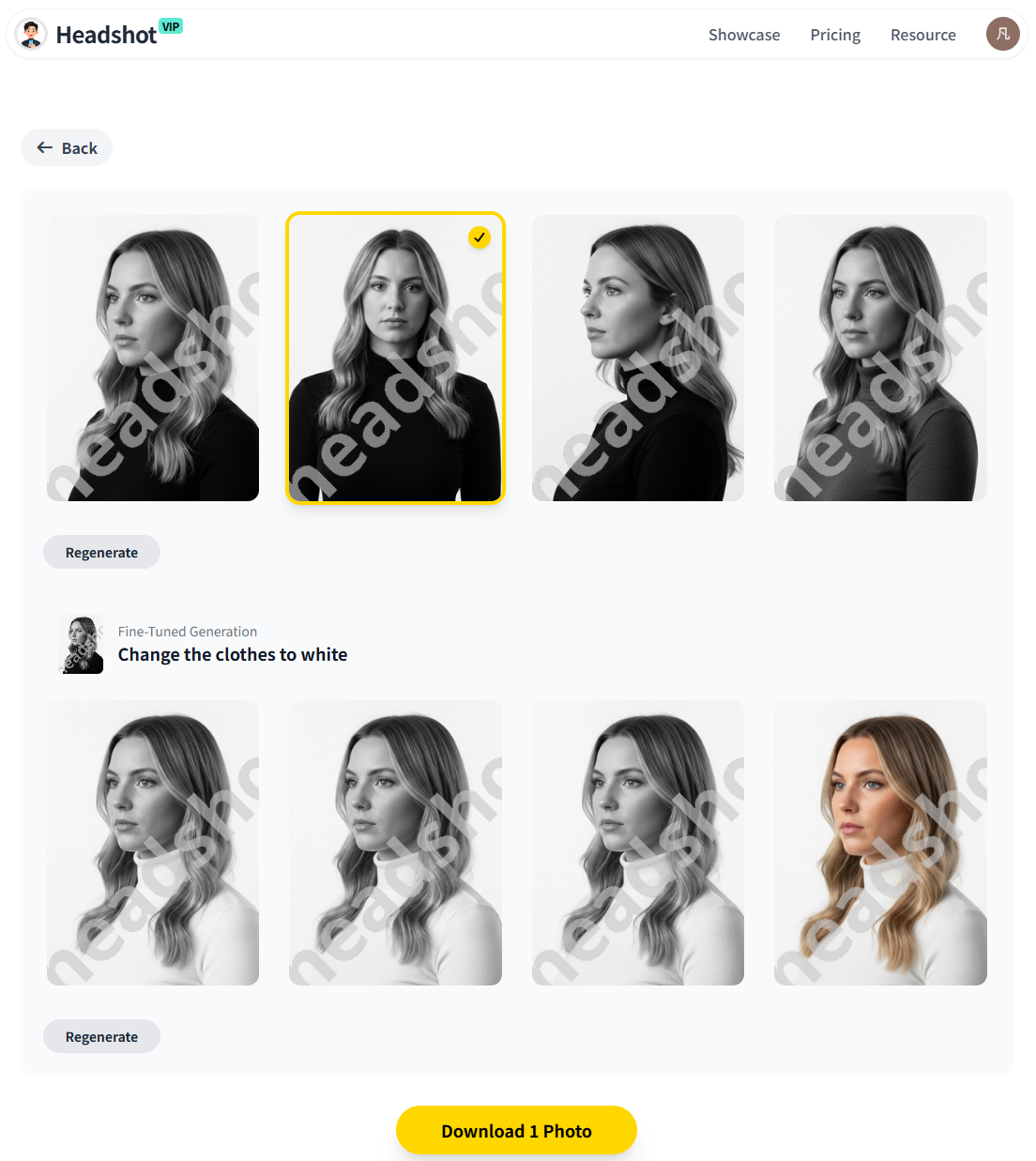
Let the AI generate your headshots
- HeadshotVIP creates a custom identity model based on your photos.
- Wait for processing (typically minutes, not days).
- You’ll receive a batch of high-resolution AI professional headshots.
Review, crop, and download
- Favorite your best 3–10 shots.
- Crop different versions: square for LinkedIn, vertical for speaking gigs or websites.
- Download in high-resolution formats ready for:
- LinkedIn and other social profiles
- Resumes / CVs
- Company sites and press bios
Advantages of HeadshotVIP for AI professional headshots
✅ Business-first styles
Presets tuned for LinkedIn, resumes, and corporate websites—not cosplay or fantasy looks.✅ Strong identity consistency
Advanced AI face modeling keeps your features recognizably you across styles and poses.✅ High-resolution, platform-optimized outputs
Images are sized and sharpened with usage on LinkedIn, portfolios, and team pages in mind.✅ Team-ready consistency
Great for startups and companies who need a uniform style across many employees without studio logistics.✅ Privacy-focused processing
Photos are handled with a privacy-first approach, and not reused to train unrelated models without permission.
Limitations to be aware of (honest notes)
- Results still depend heavily on input quality—blurry, dark selfies will reduce realism.
- You don’t get the infinite manual posing control of a human photographer with a DSLR.
- For extremely niche/creative concepts, a general-purpose art-style AI might be more flexible.
Method 2: Using general-purpose AI and design tools (like Canva, Aragon, others)
There are many strong alternatives in the ecosystem:
- Canva’s AI Headshot Generator / ProfilePhoto app
- Dedicated tools like Aragon AI, BetterPic, HeadshotPro, and others compared in independent reviews
How this method typically works:
- Create an account with your chosen tool.
- Upload a batch of selfies (often 8–20+).
- Choose a style (business, casual, indoor, outdoor, etc.).
- Wait for your set of AI-generated headshots.
- Optionally export to Canva or another editor to add filters, crop, or tweak backgrounds.
Pros:
- Wide variety of styles (from business to dating, glamour, and more).
- Some tools offer limited free credits to experiment.
- Canva makes it easy to integrate headshots into designs, decks, and social content.
Cons (where HeadshotVIP tends to be stronger):
- Many tools are style-first rather than business-first; you need to work harder to get a solid, conservative LinkedIn look.
- Identity consistency varies—some tools change eye color, jawline, or age noticeably.
- Team-wide consistency is harder to control across dozens of people without a dedicated business headshot workflow.
- It’s easy to go overboard with filters in design tools, making the final image look obviously AI-edited.
If you’re mostly experimenting or want a mix of professional and fun looks, these tools are great.
When the priority is “I need reliable, on-brand, professional headshots fast,” a business-focused tool like HeadshotVIP is usually more efficient.
Quick comparison: generic AI tools vs HeadshotVIP for AI professional headshots
| Feature / Need | Generic AI Tools (e.g., Canva, Aragon) | HeadshotVIP |
|---|---|---|
| Core focus | Mixed: social, dating, fun, business | Professional & business headshots only |
| Identity consistency across outputs | Varies by tool; sometimes inconsistent facial features | High identity consistency across batches |
| Ease of getting a LinkedIn-ready result | Requires careful style choices / prompts | Preset styles tuned for LinkedIn & resumes |
| Team / company-wide style consistency | Manual; harder to standardize across many people | Built for teams and unified visual style |
| Background & crop optimization for platforms | Manual cropping and testing | Outputs sized with professional platforms in mind |
| Creative / fun non-business looks | Often many (dating, glamour, anime, etc.) | Minimal—focus stays on professional uses |
| Best suited for | Experimenters, mixed personal use | Job seekers, founders, teams, remote companies |
FAQ: Getting realistic AI professional headshots in 2025
Q1: How many selfies should I upload for the best AI professional headshot results?
A: Follow your tool’s minimum, but 8–20 high-quality images tends to be the sweet spot. Focus on variety in lighting and angle, but keep your look consistent (same haircut, glasses, typical expressions). More low-quality photos won’t help; fewer excellent photos usually beat a big messy batch.
Q2: Can AI-generated headshots really be used on LinkedIn and resumes?
A: Yes—if they look like a realistic, current version of you. A recent industry study found that many recruiters now accept, and even prefer, high-quality AI headshots, as long as they’re not heavily stylized or misleading. Keep your look natural, professional, and close to how you appear in real life.
Q3: What if my AI headshot doesn’t look like me?
A: This usually comes from poor input data or overly stylized prompts. Try again with:
- Clearer, better-lit selfies (no filters).
- Fewer extreme angles and fewer “fun” photos.
- A more conservative, business-focused style or prompt.
Tools like HeadshotVIP that emphasize identity modeling tend to handle likeness better than generic art generators.
Summary
You don’t need a studio to get a strong AI professional headshot—but you do need a bit more strategy than just “upload and hope.”
To recap the 7 expert tips:
- Feed the AI clean, well-lit selfies that match your current look.
- Control lighting, angle, and expression before upload.
- Use clear, professional prompts instead of artsy, vague ones.
- Define a personal brand spec and reuse it across tools.
- Generate with LinkedIn, resumes, and websites in mind (not just “pretty”).
- Do light, honest retouching instead of heavy filters.
- For teams, use a business-focused tool to keep everyone consistent.
HeadshotVIP is built specifically around these principles: identity consistency, business-focused styles, and platform-ready outputs—for individuals and teams who care about how they look online.
Try HeadshotVIP Now:
- Starter: $6.99 – Ideal for a fresh LinkedIn or resume headshot
- Professional: $9.99 – More styles, higher resolution, and extra variety
Related Articles
- ai-professional-headshot-branding-guide-2025
- best-ai-professional-headshot-generator-for-linkedin-2025
- ai-professional-headshot-examples-ideas-for-linkedin-2025
Current Date: 2026-01-27